
Step 1: Access the Job
Step 2: Start a New Data Center SPA
Step 3: Complete the SPA Workflow
Step 4: NTP Approval
Step 5: Site Checkout
Step 1: Access the Job
- Open the Pathwave mobile app
- Tap the Jobs icon from the homepage
- Select All Jobs Not Completed
- Tap the appropriate job to open the Job Details page
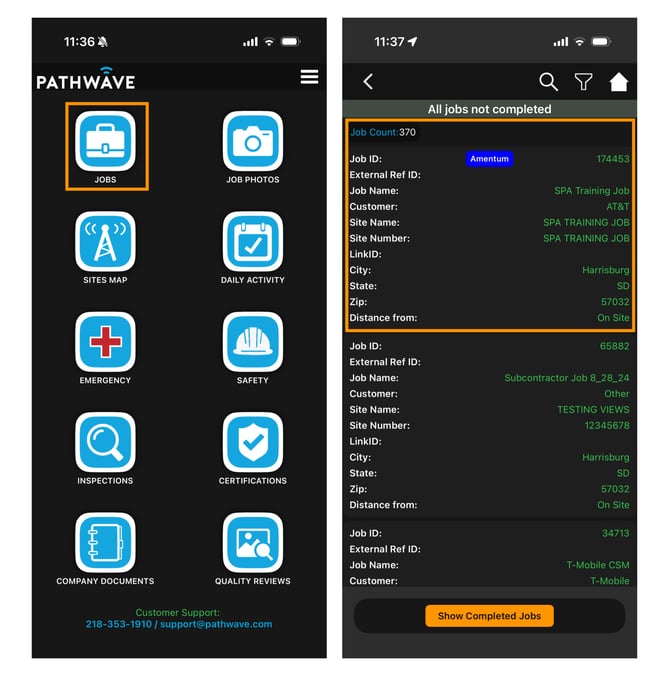
Notes:
-
Jobs in Ready status will appear
-
The job closest to your location is listed first
-
Use the filter icon (top-right) to search by job name, job ID, or other identifiers
Step 2: Start a New SPA
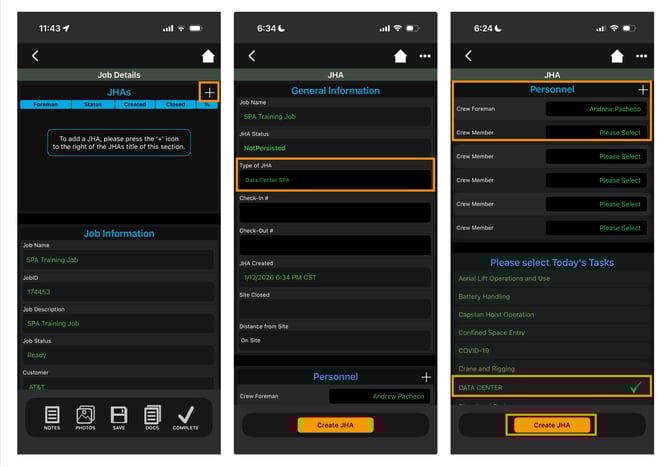
- On the Job Details page, locate the JHAs section
-
Tap the white plus (+) button to create a new SPA
-
The General Information screen will appear (pre-filled with job data)
- Choose the appropriate JHA Type:
- Data Center SPA
-
Select all personnel participating in the work that day
-
Select Data Center for Today's Tasks
-
Tap Create JHA to launch the full Data Center SPA form
Step 3: Complete the SPA Workflow
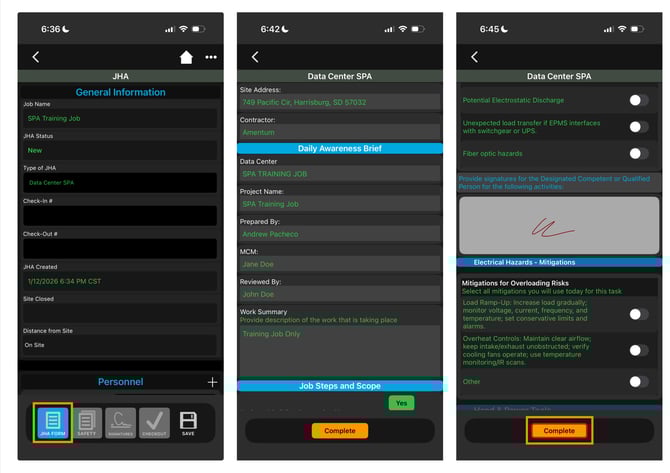
The Pathwave app will guide you through each stage of the Data Center SPA. The current stage will be highlighted in blue at the bottom of the screen.
A. Data Center SPA Form
-
Complete all required safety questions
-
Required fields must be completed to proceed
-
Missing items are highlighted in red
-
Tap Complete when finished
-
Additional safety forms may be triggered based on Data Center SPA responses
-
Required forms are marked Yes in the Required column
-
Complete all required forms
-
Tap Continue to proceed

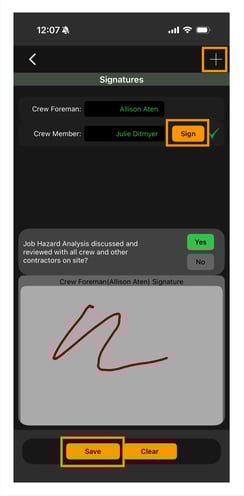
C. Signatures
-
All participating team members must provide a digital signature
-
To add walk-on personnel, tap the white plus (+) icon
-
Once all signatures are collected, the Data Center SPA is fully submitted
Step 4: Notification & Approval
-
The assigned Subcontractor PM or CM receives an email and text notification
-
They review the Data Center SPA and issue the Notice to Proceed (NTP) from the Pathwave portal or app
-
Once approved:
-
The Foreman automatically receives a text message confirming NTP issuance
-
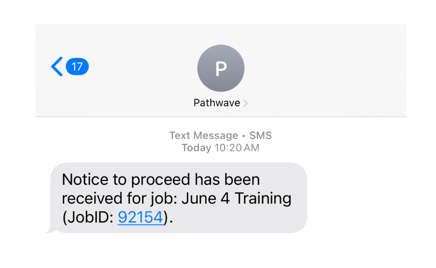
Important: Work must not begin until the Notice to Proceed has been issued.
-
-
How to Issue a Notice to Proceed (NTP)
-
Step 5: Site Checkout
At the end of the workday, crews must complete Site Checkout.-
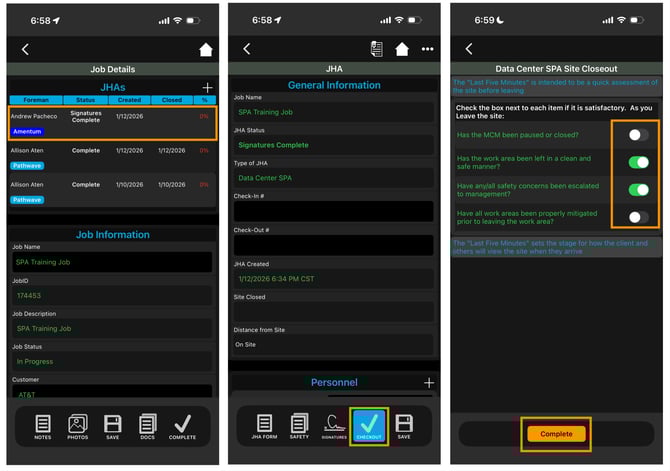
Return to the Job Details page
-
Open the Data Center SPA submitted earlier that day
-
Select the Site Checkout icon (highlighted in blue)
-
Answer the checkout questions
-
Select Complete
🎥 Training Video 🎥
How to Complete a Data Center SPA
Need Help?
- If you have any questions or run into issues:
- Email Support: support@pathwave.com
- Field Support: 218-506-0627 Portal Support: 218-248-7744