
Published Date: 11/9/26
View Quality Review Workload by Reviewer
Know who is reviewing what, and how much. The new Quality Review Workload report gives you a single view of every photo review decision made on Quality Reviews, broken down by reviewer, so you can balance workload, spot rejection trends, and keep reviews moving.
Go to Reports > Quality Review Workload in the Pathwave Portal.
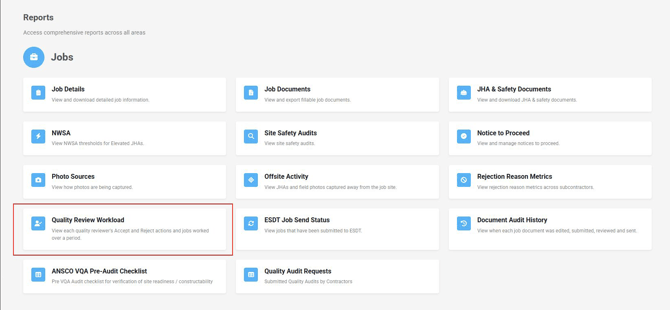
Reviewers tab
The report opens to the Reviewers tab, which summarizes each reviewer's activity for the selected period:
| Column | What It Shows |
| Reviewer | The person who made the review decisions. |
| Jobs Worked | Number of jobs the reviewer worked on. |
| Reviews Worked d on. | Number of Quality Reviews the reviewer worke |
| Accepted | Photos accepted, including Bulk Accept actions. |
| Rejected | Photos rejected. |
| Missing Photos | Photos marked as missing. |
| Avg Decisions per Job | Average number of decisions (Accept, Reject, Missing) per job. |
| Avg Rejections per Job | Average number of rejections per job. |
Choose the Reviewers to include and a time period (for example, This Week), then select Run Report.
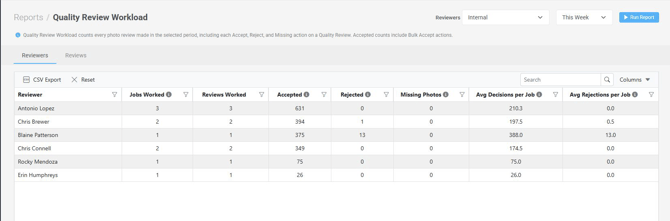
View Quality Review Activity by Job Review
Need the detail behind the totals? Select the Reviews tab to see activity for each Quality Review, including:
-
The reviewer working the review
-
The total number of photos in the review and their status
-
The subcontractors on the job
-
When the first and last decisions were made on the Quality Review
-
Job details such as Job Name, AT&T IWM Job Number, National Program, Job Type, Purpose, Review Status, and Review Type
Jump straight to the work from the report:
-
Select the PW Job ID to open the job.
-
Select the Review link to open the Quality Review directly.
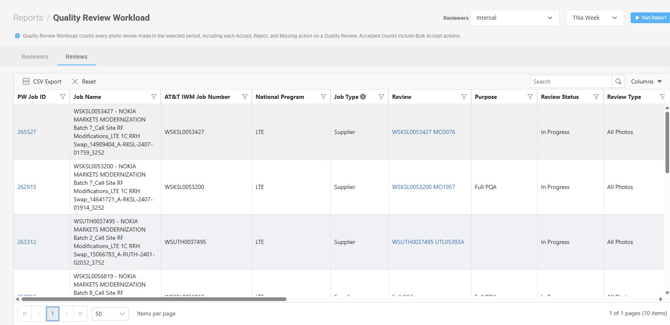
Export Quality Review Workload to CSV
Both the Reviewers and Reviews tabs can be exported. Select CSV Export above the table to download the report for offline analysis or to share with your team.
Tip: Use Columns to show or hide fields, the filter icons in each column header to narrow
results, and Reset to return to the default view.
Learn more about managing Quality Reviews in Pathwave - get in touch with us today. support@pathwave.com