
Fillable Job Documents are digital forms completed directly within the Pathwave mobile app on an iPad or phone. These forms are associated with a job and are designed specifically for telecom field workflows.
Forms listed under Fillable Documents are typically added by the back office. If a required form is not already applied to the job, users can add it directly from the field.
Important Notes
-
Fillable Job Documents are not available in offline mode.
An active internet connection is required to open, save, or complete fillable forms. -
Fillable Job Documents can also be completed in the Pathwave portal.
For portal-based instructions, see:
Completing Fillable Job Documents in the Pathwave Portal
Access a Job and Navigate to Fillable Documents
-
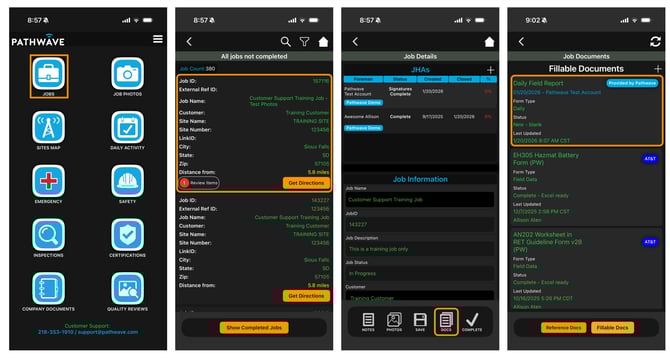
Sign in to the Pathwave app on your iPad or phone
-
Select Jobs
-
Select a job
-
Select Docs at the bottom of the Job Details screen
-
Select Fillable Documents
-
This section displays all fillable forms currently associated with the job.
Complete a Fillable Document
-
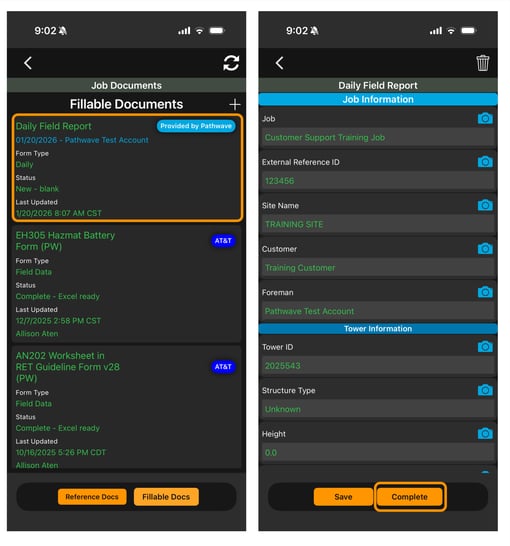
From the Fillable Documents list, select a form
-
Enter the required information
-
To save progress, select Save
-
Saved forms remain in progress and can be reopened and edited from the field
-
-
To submit the form, select Complete
Add a Fillable Document to a Job (If Not Already Applied)
If a required form is not listed under Fillable Documents:
-
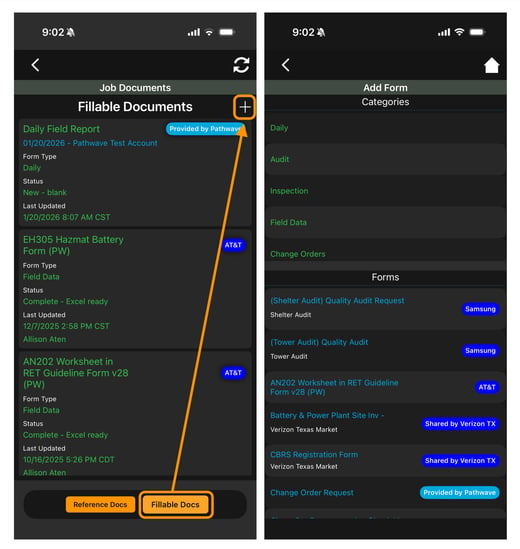
Select the “+” (white plus) button in the top-right corner of the Fillable Documents section
-
Locate the form from the available list
-
Select the form to add it to the job
-
Open the form and complete it following the steps above
Once added, the form becomes part of the job’s Fillable Documents list.
Daily Field Report Behavior
-
Note: When a JSA is created for the day, a Daily Field Report is automatically created and available to edit. Start a new Daily Field Report for each day on site.
Need Help?
If you have questions or need assistance with Fillable Job Documents, contact the Pathwave Support team.
-
Email: support@pathwave.com