![100066_PathWave_Logo_Update_NoTag_REVERSE-1.png]](https://support.pathwave.com/hs-fs/hubfs/100066_PathWave_Logo_Update_NoTag_REVERSE-1.png?height=40&name=100066_PathWave_Logo_Update_NoTag_REVERSE-1.png)
Article Published: October 25, 2025
This article explains how AT&T-managed forms are applied to jobs and completed in Pathwave. It covers where forms appear in the system, how users complete them in the portal or mobile app, and how submissions are tracked for visibility and compliance.
These instructions apply only to AT&T-managed forms and do not affect supplier-controlled or internal templates.
How AT&T Forms Are Applied to Jobs
AT&T forms are associated with jobs based on AT&T program, project type, and scope of work.
Forms may be applied in one of the following ways:
-
Manually applied at the job level by AT&T Supplier and/or assigned subcontractor
-
Automatically applied through configured workflows within Pathwave
This flexibility allows teams to ensure the correct AT&T documentation is associated with each job based on operational needs and program requirements.
Where AT&T Forms Appear
Pathwave Portal
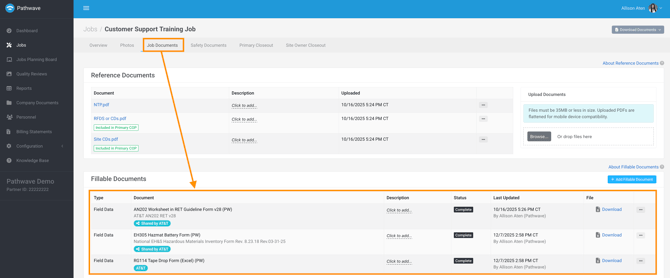
In the Pathwave portal, AT&T forms are accessed from the job record:
-
Navigate to the Job Documents tab
-
Select Fillable Documents
From this area:
-
Forms are visible within the context of the job
-
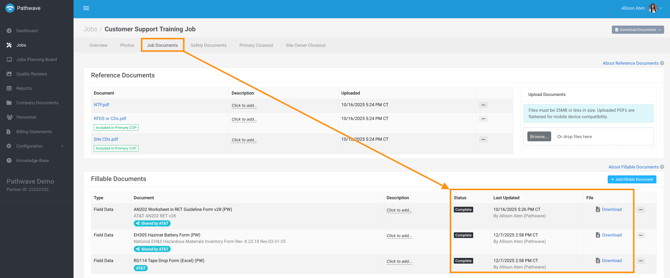
Back-office teams can review form status, revision, and completeness
-
Generated outputs (when applicable) are available for download
Pathwave Mobile App
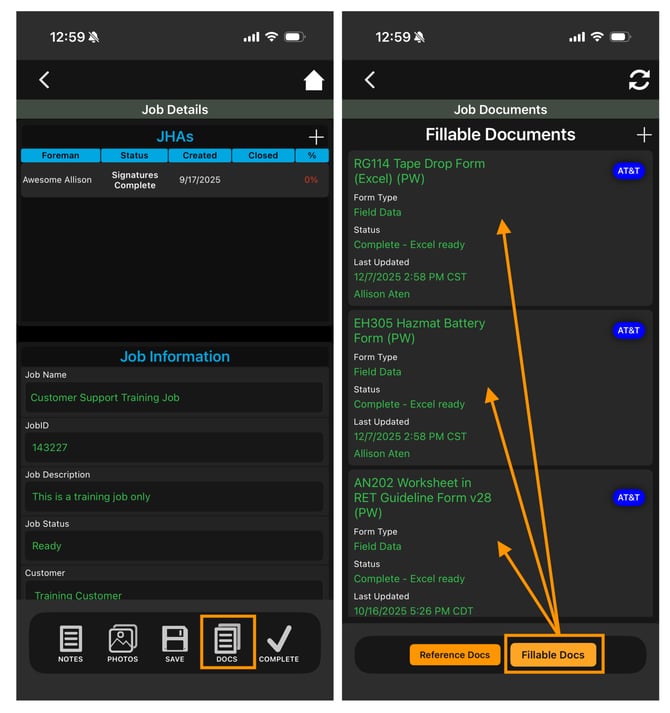
In the Pathwave mobile app, AT&T forms are accessed from the job:
-
Select the Documents icon
-
Choose Fillable Documents
From the app:
-
Field users can view and complete required forms
-
Built-in validations prevent incomplete or non-compliant submissions
Completing a Fillable Form in Pathwave
Fillable forms are completed within the context of a job. The same AT&T form structure and validation rules apply whether the form is completed in the portal or the mobile app.
Completing a Fillable Form in the Portal
To complete a fillable form from the Pathwave portal:
-
Open the job record
-
Navigate to the Job Documents > Fillable Documents section
-
Select the three dots next to the form
-
Choose Edit Document
-
-
From the form editor:
-
-
Complete the required fields
-
Select Save to pause and complete the form at a later time
-
Select Complete to finalize the form and generate the AT&T-managed output template (when applicable)
-
Note: Forms remain editable after completion, allowing updates if corrections are required.
Completing a Fillable Form in the Mobile App
To complete a fillable form from the Pathwave mobile app:
-
Open the job
-
Select the Documents icon
-
Choose Fillable Documents
-
Select the required form
From the form:
-
Answer all required questions
-
Select Complete to submit the form
Validations are enforced to ensure all required fields are completed before submission.
.jpg?width=670&height=483&name=Generic%20Training%20Guides%20-%20Frame%2077(1).jpg)
Submission Visibility and Tracking
Once completed:
-
Forms are immediately visible in the Pathwave portal
-
Submission timestamps and user attribution are recorded
-
The form revision used is tracked
This enables proactive compliance monitoring without manual follow-up.
Generating AT&T Output Templates (When Applicable)
AT&T forms generate an AT&T-approved output template upon completion. All output templates produced through Pathwave are managed and approved by AT&T and represent the most current revision at the time the form is generated.
When an output is available:
-
The output file is generated directly from the job record
-
AT&T project identifiers automatically populate the template
-
Output formats may include Excel (.xlsx) or PDF (.pdf), depending on the form
-
Manual copying, reformatting, or external template management is not required
Because templates are centrally managed by AT&T, users can be confident that every generated output aligns with AT&T’s latest requirements and documentation standards.
🎥 Training Video: How to Complete Fillable Forms in the Pathwave Portal & Pathwave App