
This guide explains how to locate jobs in both the Pathwave Portal and the Pathwave Mobile App.
Finding a Job in the Pathwave Portal
From the Pathwave portal homepage:
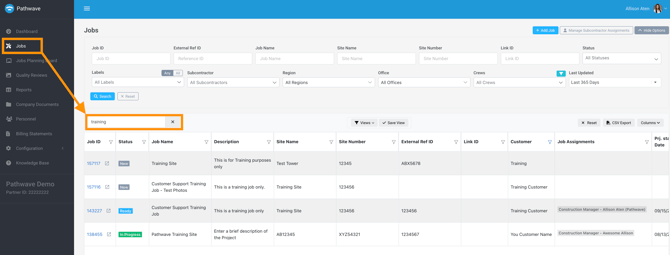
- Navigate to the Jobs tab.
- Use the Search Bar to locate jobs by:
- Job ID
- Partner Specific Project Identifier
- Carrier / Tower Owner Specific Project Identifier
-
Use additional filters to narrow results by:
- Status
- Labels
- Region / Office
- Crew
- Customer
- Assigned subcontractor
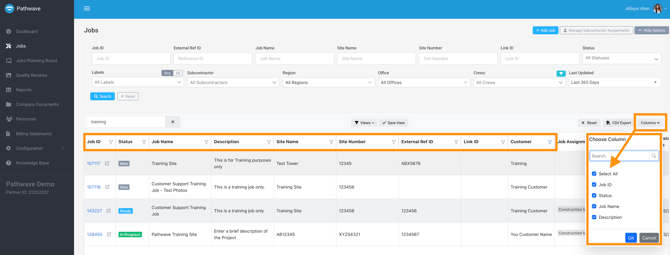
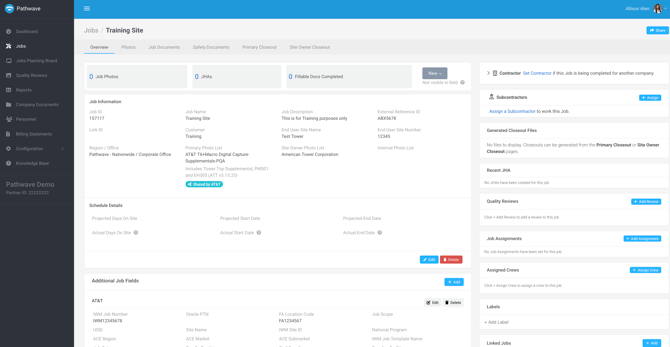
- Select the Job ID to open the Job Details page, where you can view photos, forms, documents, and all other job-level data.
Finding a Job in the Pathwave Mobile App
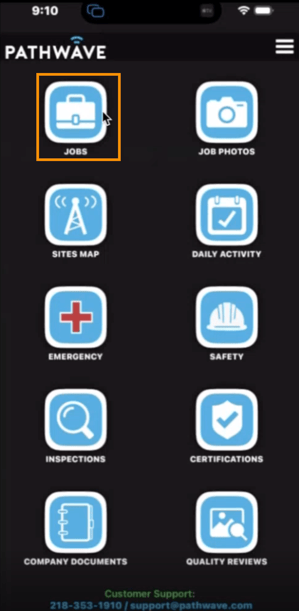
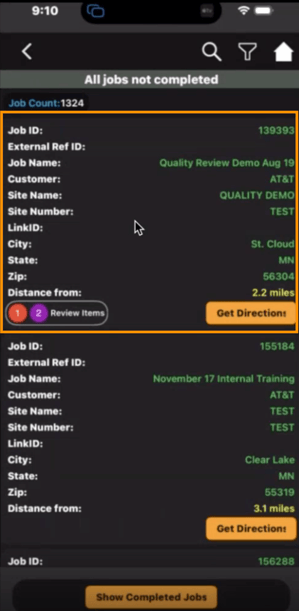
Tap the Jobs icon on the Pathwave Homepage to view all jobs available to your company.
- Pathwave uses geofencing to automatically place the job closest to your physical location at the top of the job list.
- If you are onsite, this is the fastest way to locate the correct job.
Searching If the Job Does Not Appear
If the the job does not populate at the top:
-
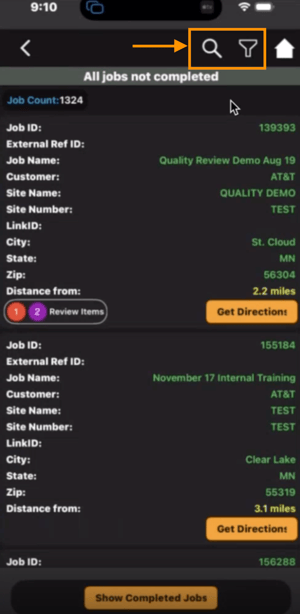
Use the Filter icon (top right) to search Job ID or Partner Specific project identifiers.
-
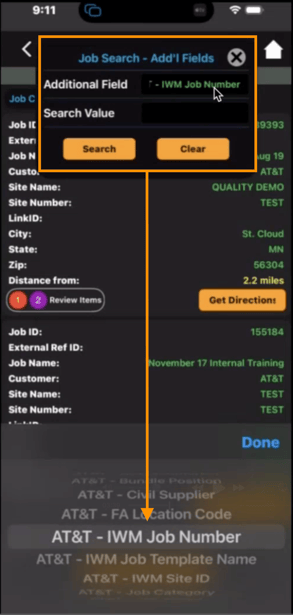
Use the Magnifying Glass to search AT&T-specific fields (FA Code, Project ID, Turf, etc.).
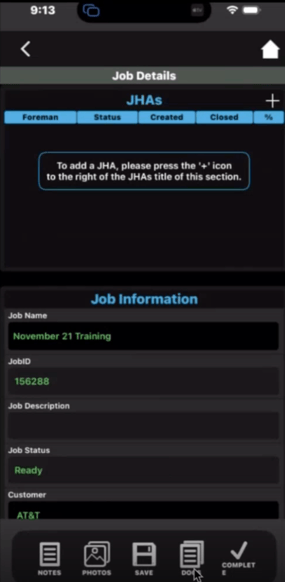
Tap the job to open the Job Details page, which includes all job information and emergency contacts.
Summary
- The mobile app surfaces onsite jobs first by ordering results according to your current location.
- Search capabilities in both the app and portal include partner-specific and carrier-specific identifiers.
- Use the portal for broader searches or when managing multiple jobs at once.
🛠️ Pathwave Pro Tips 🛠️
If you have followed the steps above and still cannot locate your job in Pathwave, review the following items. These are the most common reasons a job does not appear in the mobile app or the portal.
1. Job Status Must Be Ready or In Progress
- Jobs are only visible to field users when they are in an active workflow state.
Verify with your back office that the job is in Ready or In Progress status.
Jobs in New or Planning status will not be visible.
2. User Must Have Access to Assigned Region / Office
- Pathwave only displays jobs to users who have permissions for the region or office assigned to the job.
- Confirm which Region / Office the job is assigned to.
- Ensure the user’s access settings include that Region / Office.
- Have an internal administrator update the user’s system role if needed.