
Published May 6, 2026; Updated July 18, 2026 at 12:43 AM
Overview
Bulk actions let you update several jobs in a single pass instead of opening each job one at a time. From the Jobs list, you can select any number of jobs and change their labels, assignments, crews, region or office, or status together. This saves time during large rollouts, crew changes, and cleanup, and keeps updates consistent across every job in the batch.
Before You Begin
- Bulk actions are available in the Pathwave web portal.
- You need permission to edit jobs.
Steps
- Open the Jobs list. Select Jobs from the left navigation menu.
- Narrow the list (optional). Use filters or views to filter down to the jobs you want to update. Filtering first makes it easier to select the right batch and avoid changing jobs you didn’t intend to.
- Select your jobs. Check the box to the left of each job you want to update. To select every job on the current page, check the box in the column header. As soon as you select a job, a selection bar appears at the bottom of the screen showing how many jobs are selected.
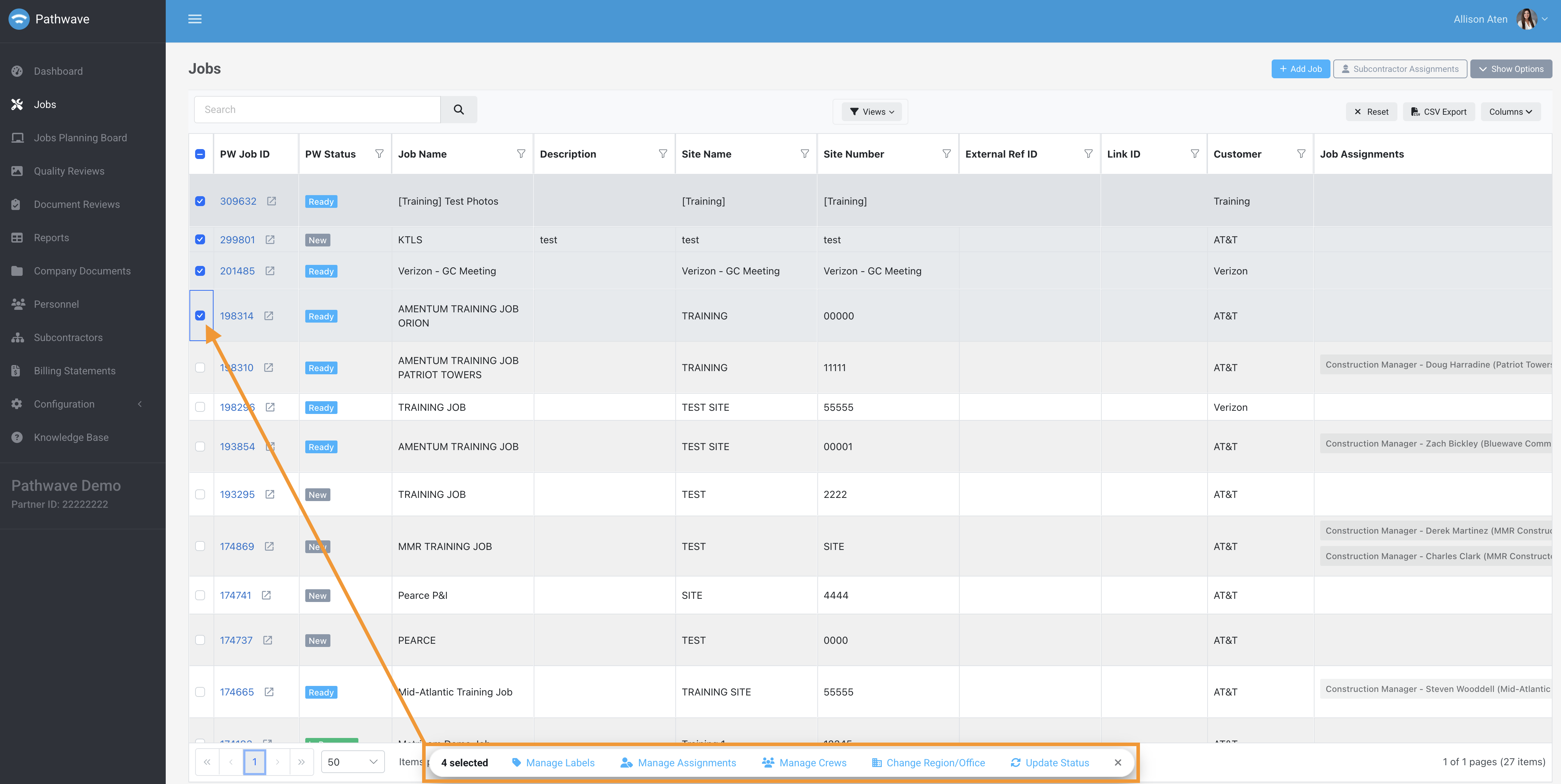
- Choose a bulk action. From the selection bar, choose the update you want to make:
- Manage Labels: add or remove labels on the selected jobs.
- Manage Assignments: update job assignments, such as the Construction Manager.
- Manage Crews: update the crews assigned to the selected jobs.
- Change Region/Office: move the selected jobs to a different region or office.
- Update Status: change the PW Status of the selected jobs.
-
Complete the update.
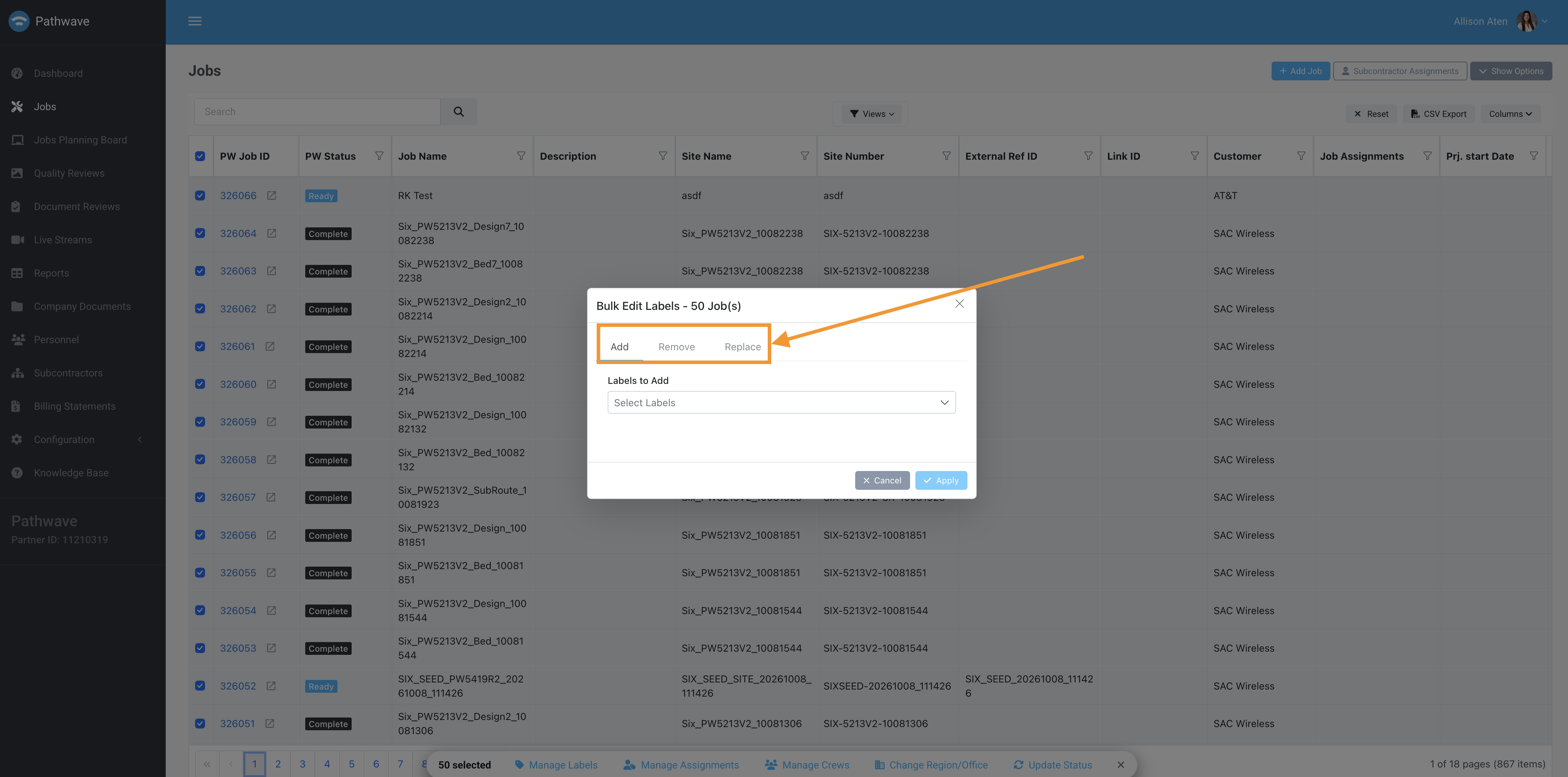
At the top of the dialog, choose how the labels should be applied:
- Add adds the selected labels to each job. Existing labels are kept.
- Remove removes the selected labels from each job.
- Replace swaps each job’s current labels for the ones you select.
Open the drop-down and make a selection. Then click Apply to update all selected jobs, or Cancel to close without making changes.
Tips & Notes
- The header checkbox selects jobs on the current page only. If your results span multiple pages, increase the items-per-page setting at the bottom of the list before selecting.
- Double-check the selection count before applying an action. Bulk updates apply to every checked job, including any left selected from earlier.
Troubleshooting
Q: I don’t see the selection bar or bulk actions.
A: The bar only appears after at least one job is checked. If it still doesn’t appear, your role may not have permission to edit jobs. Contact your Partner Admin.
Q: Some jobs didn’t update.
A: Refresh screen. If updates aren't visible, complete steps above again.