
Overview
Not every photo requirement applies to every job. Differences in site structure, equipment types, customer requirements, and project scope may make certain items irrelevant. Pathwave provides a clear, consistent way to manage these scenarios through the Mark as N/A feature.
Both the field app and the portal allow users to mark photo list items as N/A. During a Quality Review, reviewers can validate all N/A selections to ensure accuracy before completing the review.
This keeps photo lists clean, prevents unnecessary corrective actions, and ensures documentation aligns with the actual job conditions.
Where N/A Can Be Applied
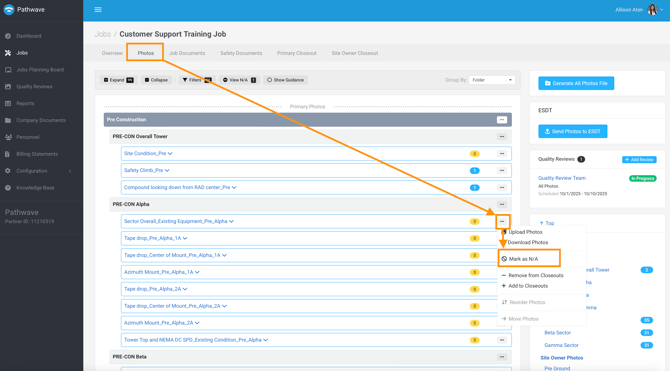
1. Marking a Photo N/A from the Portal
When viewing the photo list in the Pathwave portal, users can:
- Select a photo requirement
- Mark as N/A by selecting the three dots (...) next to the photo requirement
This is commonly used by office teams when scoping jobs or when job-specific conditions are known in advance.
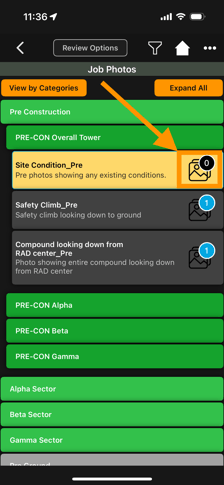
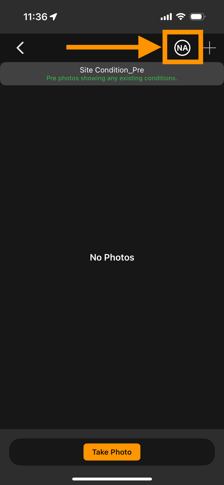
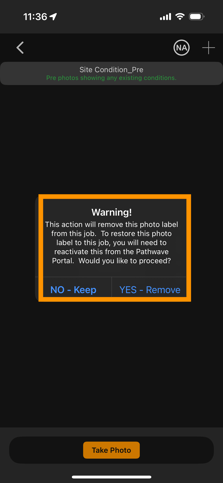
2. Marking a Photo N/A from the Field App
Field crews can also mark requirements as N/A directly from the mobile app while working through a photo list.
This is valuable when:
- Certain equipment is not present
- A requirement does not apply to the specific job variant
- A customer-required item is irrelevant for this site
- Conditions onsite differ from the expected configuration
How N/A Items Surface During a Quality Review
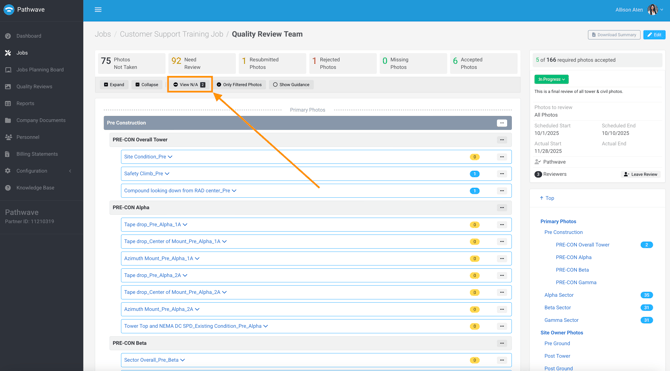
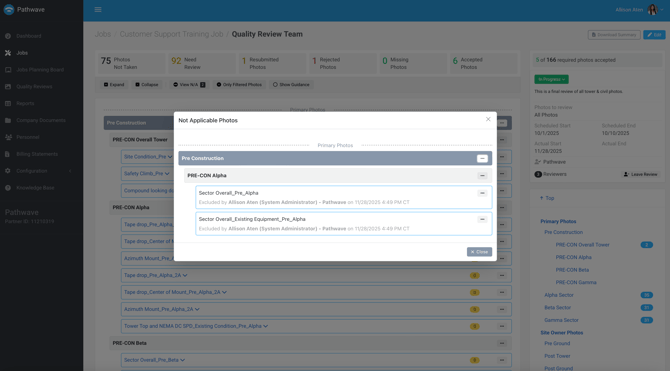
When a Quality Review is in progress, reviewers can use the View N/A button in the category toolbar to see all items that have been marked N/A either:
- From the portal, or
- From the field app
This allows reviewers to validate that each N/A selection is appropriate and intentional.
Why N/A Validation Matters
Reviewers should confirm:
- Whether an N/A selection is correct
- Whether the item truly does not apply to this job
- Whether a photo was incorrectly marked N/A to avoid capturing it
- Whether additional context or documentation is needed
This ensures that N/A items do not hide missing documentation or create gaps in customer deliverables.
Changing or Removing an N/A in a Review
If a reviewer determines that an item was incorrectly marked N/A:
- Open the item from the View N/A category
- Remove the N/A selection
- The item will reappear in the appropriate review category based on its status:
-
- Photos Not Taken, if no photos exist
- Need Review, if a photo has been captured
- Rejected Photos, if previously rejected
This maintains review integrity and ensures accurate documentation.
When N/A Should Be Used
N/A should be applied when:
- The photo requirement does not apply to the job’s scope
- The equipment referenced is not present
- The job uses a different configuration than what the photo list anticipated
- The customer or site owner does not require this item for this project
- Optional items do not apply to this site
- Regional variations make certain photos irrelevant
When N/A Should Not Be Used
N/A should not be used when:
- A photo should exist but was not captured
- The requirement applies but cannot be captured due to poor conditions
- The field crew is unsure how to capture the photo
- The photo was submitted incorrectly (should be rejected, not N/A)
- Documentation is still required by the customer or site owner
In these cases, N/A hides required documentation and will cause issues downstream.
Benefits of Managing N/A Correctly
Correct N/A usage leads to:
- Cleaner, more accurate photo lists
- Faster reviews with fewer unnecessary items
- Reduced field frustration
- Higher-quality closeout packages
- Accurate deliverables for customers and site owners
- More predictable PQA outcomes
- Stronger differentiation between “not applicable” and “not completed” work