
Mistakes happen in the field, and photos are sometimes captured under the wrong photo requirement. Pathwave makes it easy to relocate photos to the correct category—whether you are using the Pathwave mobile app or the web-based Portal.
Important: Photos cannot be moved once they have been reviewed. If a photo has been accepted or rejected in a Quality Review, it becomes locked and can no longer be edited or relocated.
Move Photos Using the Pathwave Mobile App
Follow these steps to relocate a photo captured in the wrong category:
-
Open the Pathwave app and navigate to the job.
-
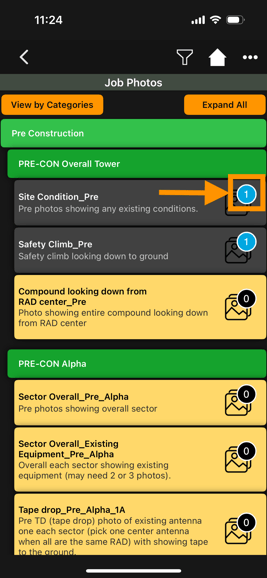
Open the photo list and tap the photo that needs to be moved.
-
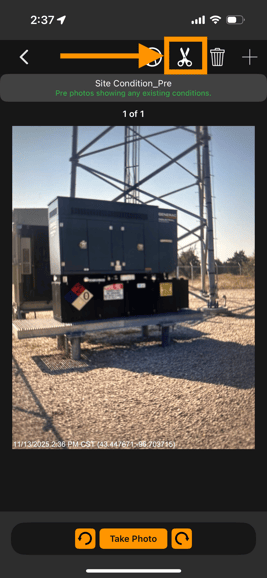
In the top right corner of the photo viewer, select the scissors icon (✂️).
-
A list of all available photo categories will appear.
Select the correct category where the photo should be placed.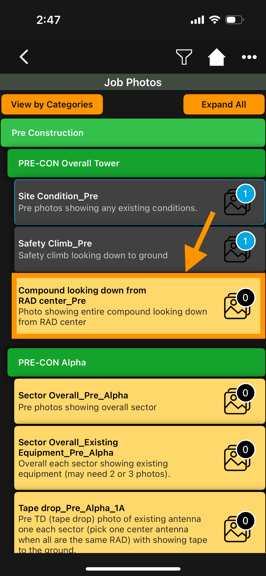
-
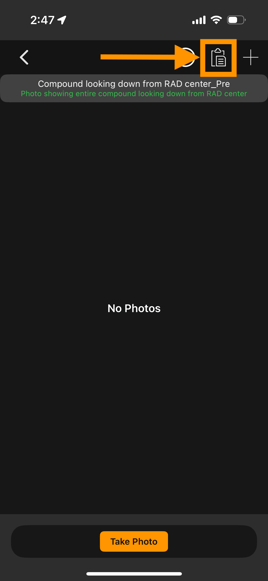
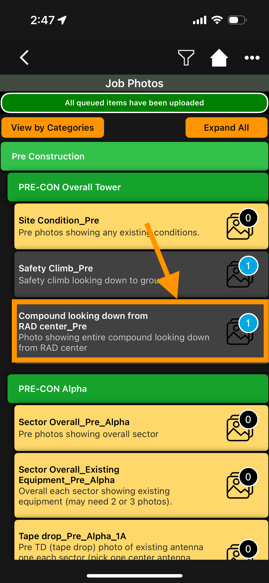
After selecting the new category, tap the Paste (clipboard) icon in the top right corner.
-
The photo will be moved automatically to the selected category.
Need help managing photos? Reach out to us and get support.