In this release, you can now:
- Quality Review Purposes
- Collapsible Folders
- Move and Copy Photos During a Quality Review
- Reject all photos in a label with the same Rejection Reason
- Upload or Use an existing photo as a Replacement Photo
- Expanded Review Item History
- Easily Add and Remove Reviewers
- Quality Review Layout and Navigation
- Quality Review Dashboard: Contractor Visibility for the Subcontractor
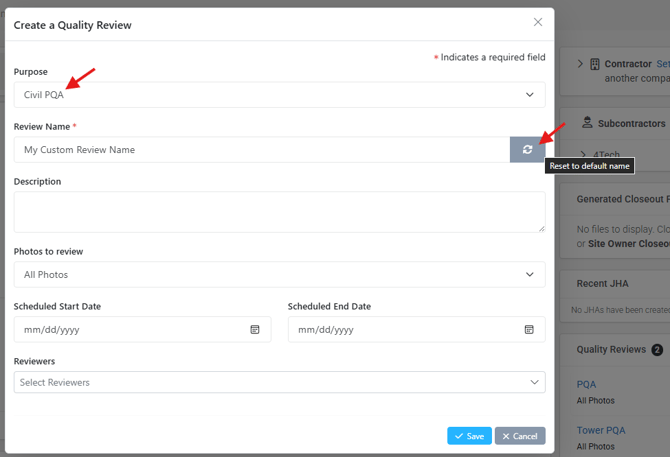
Quality Review Purposes
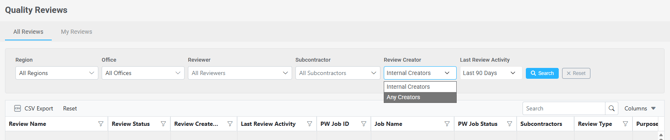
When creating a Quality Review, users can now select from a pre-populated list of review purposes. Reviews can also be sorted and filtered by purpose on the Quality Review Dashboard. Purposes can be customized by navigating to Configuration > Quality Reviews.
Collapsible Top-Level Folders
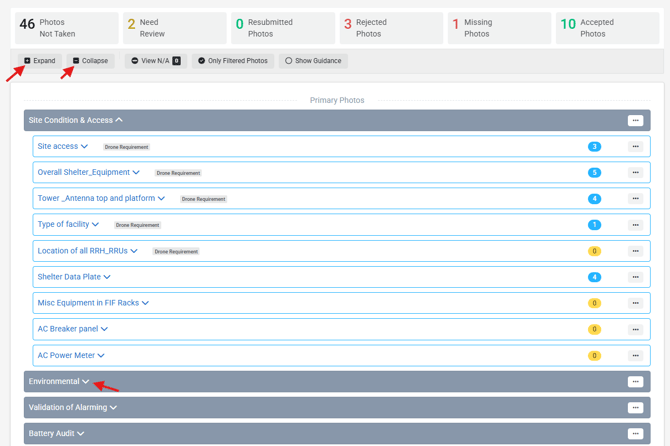
Top-level folders on the Quality Review screen can now be collapsed and expanded to reduce visual clutter and make navigation easier.
Move and Copy Photos During a Quality Review
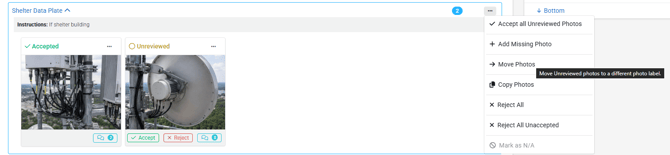
Reviewers can now move or copy photos between labels directly from the Quality Review screen. Photos that have already been Accepted or Rejected cannot be moved, but they can be copied.
Reject all photos in a label with the same Rejection Reason
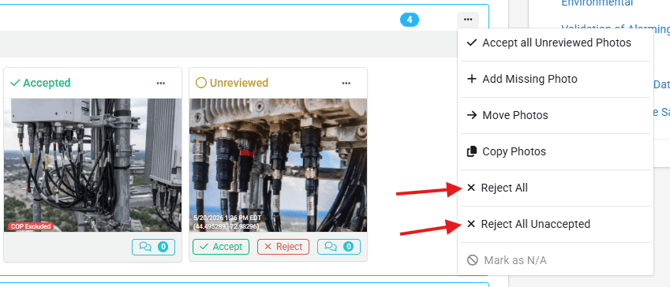
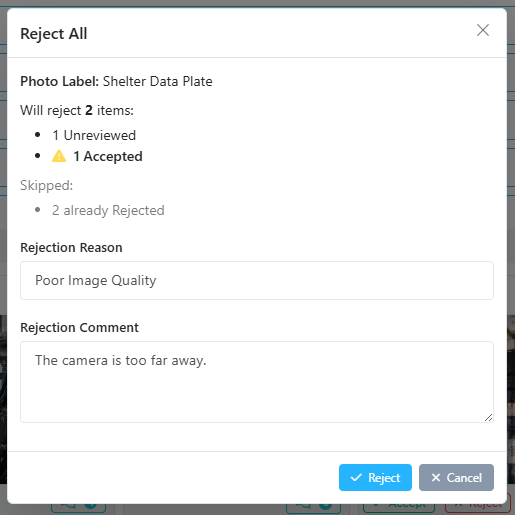
Reviewers can now reject all photos in a label, or all unreviewed photos, at once using a single shared rejection reason. A confirmation summary is shown before the rejection is applied.
Upload or Use an existing photo as a Replacement Photo
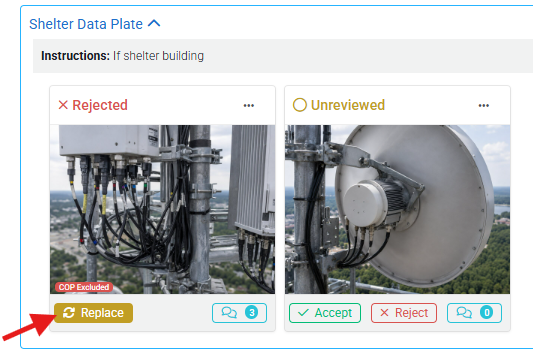
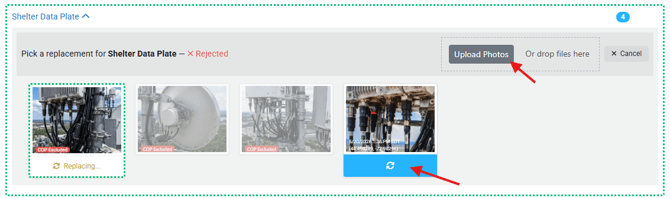
When a photo is rejected during Quality Review, Portal users can upload a new replacement photo directly from the Portal, or select an existing photo from the same label to serve as the replacement.
Expanded Review Item History
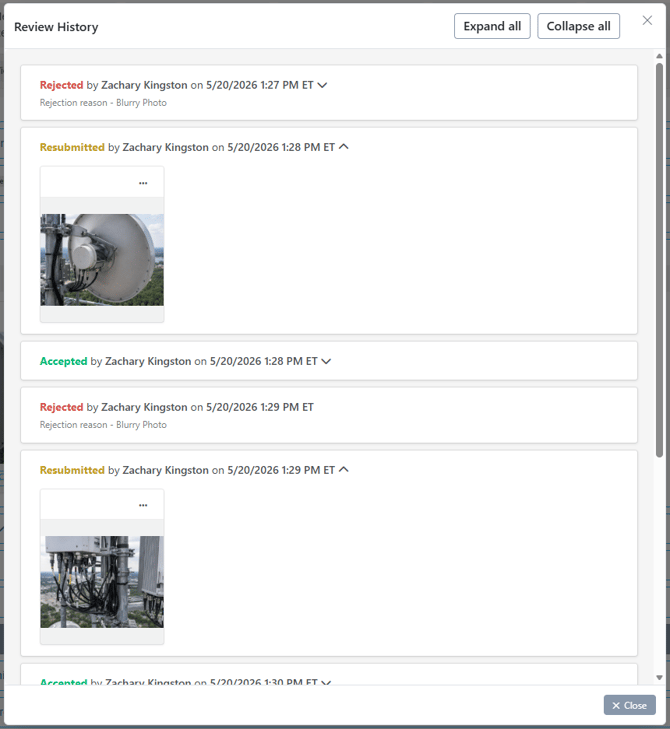
The full photo history for each review item is now visible from the Quality Review screen. A photo from a review item's history can also be promoted into the current review as a new review item.
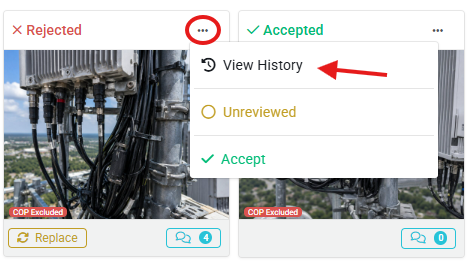
Promote a history photo to a new review item - Reviewers can use a photo from the Review Item History to add to the Review.
Easily Add and Remove Reviewers
Reviewers can be added or removed directly from the Quality Review screen without navigating to the Edit view.
Quality Review Layout and Navigation
The Edit button has been relocated onto the main status card, so it is more discoverable.
Quality Review Dashboard: Contractor Visibility for the Subcontractor
Subcontractors can now find reviews created by the Job Owner of their jobs by selecting "Review Creator: Any Creators" on the Quality Review Dashboard.