
Overview
Reviewing individual photos is the core of the Quality Review workflow. Within the Photo Detail View, reviewers can evaluate each photo for accuracy, compliance, clarity, and completeness. This workspace includes all tools needed to accept or reject photos, provide clear direction for field corrections, and track the history of every review action.
Photo Detail View: Key Components
When a reviewer selects a photo from any category, the full photo detail screen presents:
- The image in high resolution
- Accept / Reject action buttons
- Markup tools
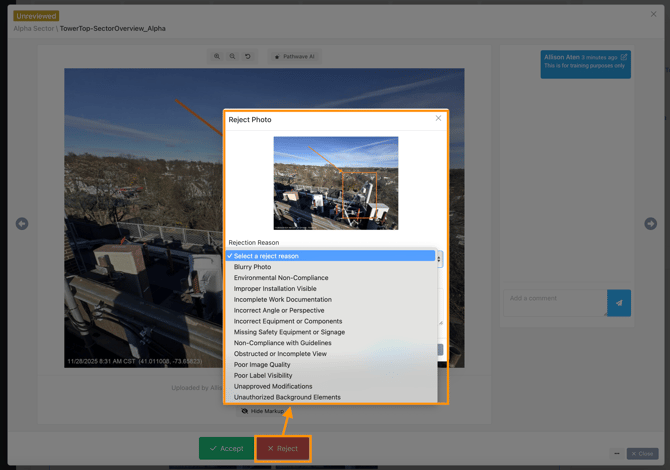
- Standard and custom rejection reasons
- Reviewer comment field
- Original vs. replacement photo comparison (when resubmitted)
- Complete review history (timestamps, comments, reviewer actions)
This unified interface ensures reviewers can make accurate, consistent decisions quickly.
Accepting a Photo
When to Accept a Photo
A photo should be accepted when it meets all criteria defined by the:
- Primary or Site Owner photo list
- Project-specific requirements
- Customer or carrier deliverables (e.g., AT&T, site owners)
- Quality and compliance standards
Accepted photos automatically move to the Accepted Photos category.
What Happens When a Photo is Accepted
- Reviewer decision is recorded in the photo’s history
- Field teams see the updated status instantly
- The review progress indicator updates accordingly
Rejecting a Photo
When to Reject a Photo
A photo should be rejected when it:
- Is unclear or blurry
- Does not show the required angle
- Is missing required elements
- Is incomplete or non-compliant
- Shows unsafe conditions or deviations from scope
- Does not meet customer or site-owner specifications
Rejected photos move to the Rejected Photos category and surface immediately in the field app.
Using Rejection Reasons
Reviewers can select from built-in standard rejection reasons or use partner-defined custom reasons to maintain consistency across teams.
Common examples include:
- Incorrect Angle
- Blurry / Poor Quality
- Missing Detail
- Obstructed View
- Not Following Photo Requirement
- Non-Compliance with Scope
Using standard reasons ensures consistency across all reviewers, subcontractors, and regions.
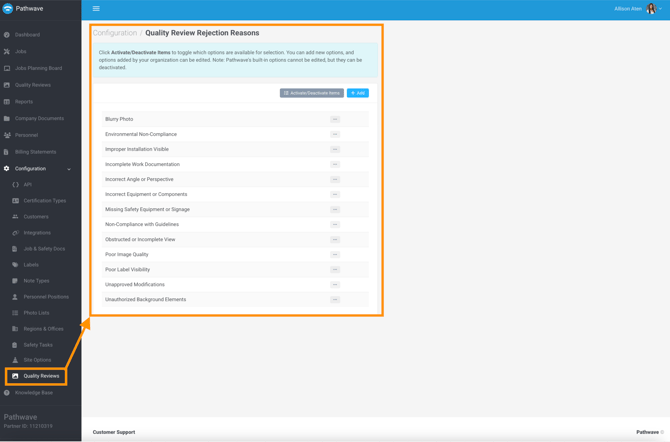
Note: Administrators can customize rejection reasons to match organizational or customer requirements under:
Configuration > Quality Review Rejection Reasons
Adding Reviewer Comments
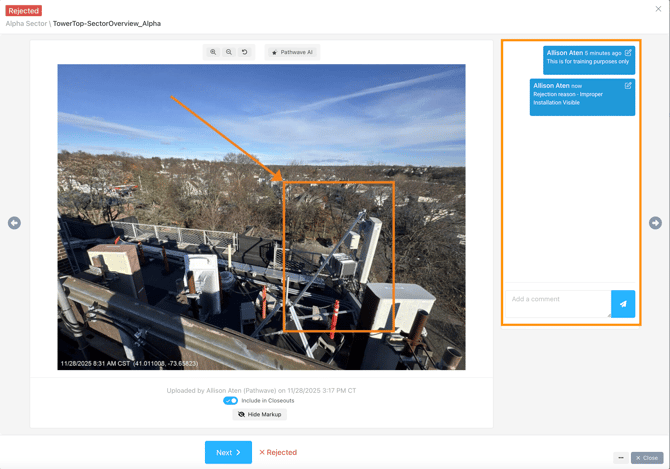
In addition to selecting a rejection reason, reviewers can add written comments to:
- Clarify what needs correction
- Provide additional context
- Call out missing details
- Guide field teams toward proper retaking
- Add nuance beyond the rejection reason
Comments are visible to the field immediately (unless the device is offline) and significantly reduce back-and-forth communication.
Applying Markup
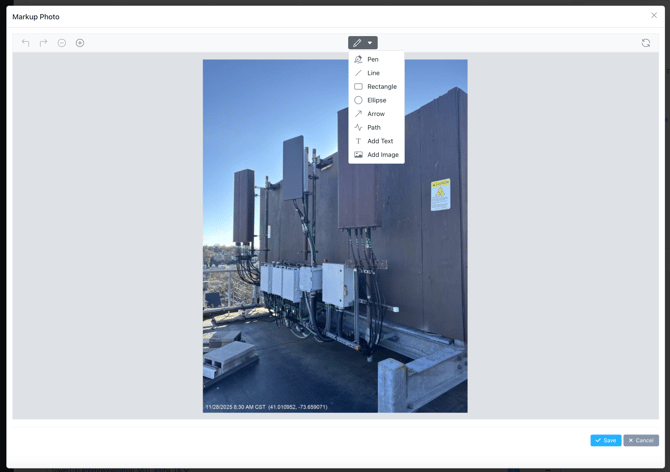
Markup tools allow reviewers to visually highlight issues directly on the photo, including:
- Highlight areas
- Circles / boxes
- Arrows
- Freehand annotations
Markup is one of the most effective ways to ensure field teams understand exactly what needs to be corrected.
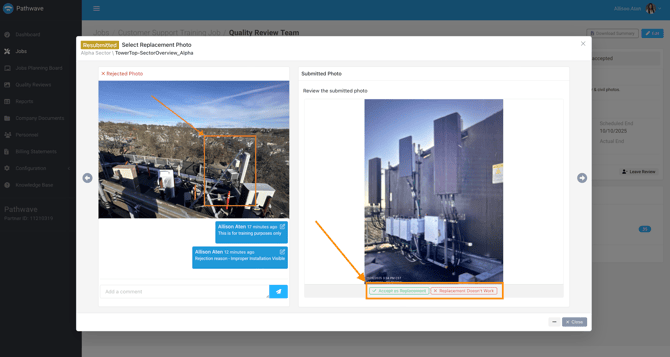
Reviewing Resubmitted Photos
When a field team submits replacements:
- The photos appear in the Resubmitted Photos category
- Reviewers can compare the original and new photo side by side
- The review history shows all prior comments and actions
Reviewers can accept the replacement or reject it again if issues persist.
Viewing Review History
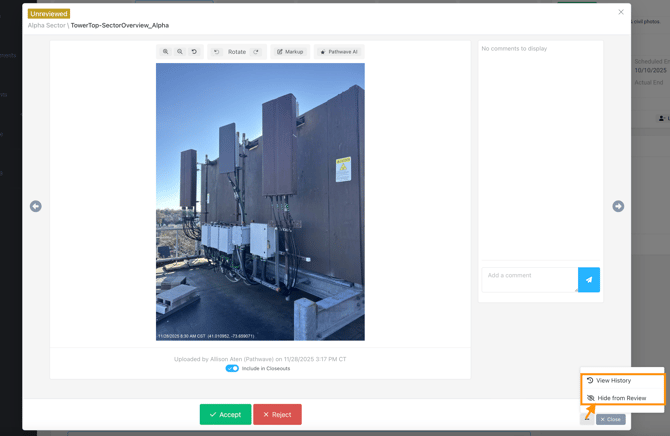
Each photo maintains a complete audit trail, including:
- Accept / reject decisions
- All comments
- Markups
- Reviewer names
- Timestamps
- Replacement submissions
This ensures transparency and consistency throughout the review.
Hiding a Photo
If a photo requirement is not applicable for a specific job, reviewers may hide it from the review.
Common use cases:
- Job-specific exceptions
- Items not applicable to the site or scope
- Redundant images
Hidden items no longer appear for field teams and do not impact review progress.
Why Photo-Level Review Matters
This detailed, structured workflow ensures:
- Consistent documentation
- Reduced rework
- Clear communication
- Fast turnaround during PQAs or time-sensitive jobs
- Stronger compliance with customer or site-owner expectations
- Predictable quality outcomes across all vendors and crews
The Photo Detail View is the foundation for delivering accurate, complete photo documentation.
Note: Only photos captured on Primary and Site Owner photo lists appear in the Photo Detail View for Quality Review. Internal photos do not participate in the review workflow.