
Overview
A Quality Review can only be completed when all required actions have been resolved. Pathwave ensures reviewers have full visibility into unresolved items, N/A validations, and outstanding field corrections before they mark a review as complete.
This article explains the specific conditions required to finalize a review, how to confirm that all items are properly addressed, and how to avoid leaving items unresolved.
1. All Photo Categories Must Be Resolved
A review cannot be completed if any actionable items remain in the following categories:
Categories requiring field action:
- Photos Not Taken (🔺 action required)
- Rejected Photos (🔺 action required)
- Missing Photos (🔺 action required)
Categories requiring reviewer action:
- Need Review
- Resubmitted Photos
Complete categories (no action required):
- Accepted Photos
- Valid N/A Items
The reviewer must ensure that all items have either been:
- Accepted
- Validated as N/A
- Hidden from review (if appropriate) or resolved through corrective action.
2. Validating N/A Items
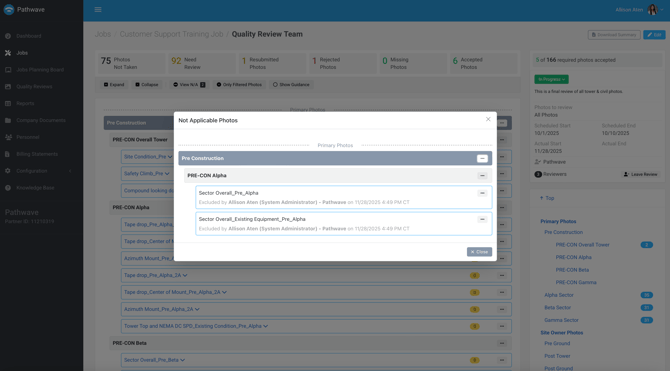
Before completing a review, reviewers should look at any items that were marked N/A either in the field or the portal.
How to Validate N/A Items
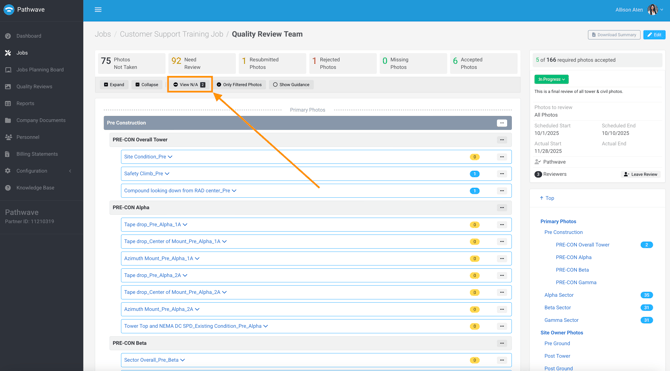
- Select View N/A in the category toolbar.
- Confirm each item is correctly marked N/A.
- If an item should NOT be N/A:
-
- Remove the N/A classification
- The item will reappear in the correct category and must be addressed before completion
Ensuring N/A accuracy prevents documentation gaps in customer deliverables.
3. Review All Comments, Markups & Messages
The reviewer should confirm that:
- All reviewer comments have been addressed
- All markup-based corrections were submitted
- All message threads with field teams are resolved
Outstanding questions or unclear instructions may require follow-up before the review is considered complete.
4. Confirming Photo Replacements Were Submitted Properly
Before completing the review, reviewers must verify that:
- All rejected photos received corrected Re-Take submissions
- No replacement photos were uploaded outside the proper workflow
- All corrected photos appear in Resubmitted Photos or Accepted Photos
Improper replacements will leave items unresolved and block review completion.
5. Ensuring No Items Are Hidden Incorrectly
Reviewers must validate that any hidden photo requirements were intentionally hidden.
Hidden items should only be used when:
- The requirement truly does not apply
- Job scope does not include the referenced item
- Equipment was not present
- Customer requirements did not include the item
If a hidden item should actually be captured, the reviewer must unhide it and request the appropriate documentation.
6. Reviewing the Summary Panel for Final Checks
Before marking the review complete, the reviewer should open the Review Summary Panel, which includes:
- Total number of photos
- Daily photo submission breakdown
- Photos reviewed vs. total required
- Review status
- Review type
- Reviewers participating
- Scheduled and actual dates
7. Final Requirements Before Completing a Review
A review can only be completed when:
- No photos remain in Photos Not Taken
- No photos remain in Rejected
- No photos remain in Missing
- No photos remain in Need Review
- No photos remain in Resubmitted
- All N/A items have been validated
- Hidden items have been reviewed and confirmed
- All accepted photos meet quality standards
- Messaging threads are resolved
Once these conditions are satisfied, the reviewer may mark the review as Completed.
8. What Happens After Completing a Review
Once the review is marked as complete:
- Review status changes to Completed
- Field notifications, if applicable, sync to the app
- The full review history is preserved
- Exports (including rejected photo packages) become available
- No further changes can be made unless a new review is created
This ensures repeatable, auditable review cycles for documentation, customer submission, or PQAs.