![100066_PathWave_Logo_Update_NoTag_REVERSE-1.png]](https://support.pathwave.com/hs-fs/hubfs/100066_PathWave_Logo_Update_NoTag_REVERSE-1.png?height=40&name=100066_PathWave_Logo_Update_NoTag_REVERSE-1.png)
Overview
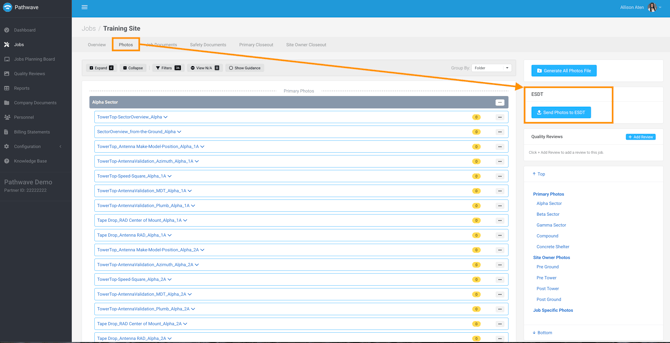
For the Send Photos to ESDT button to appear in Pathwave, a job must meet two setup requirements:
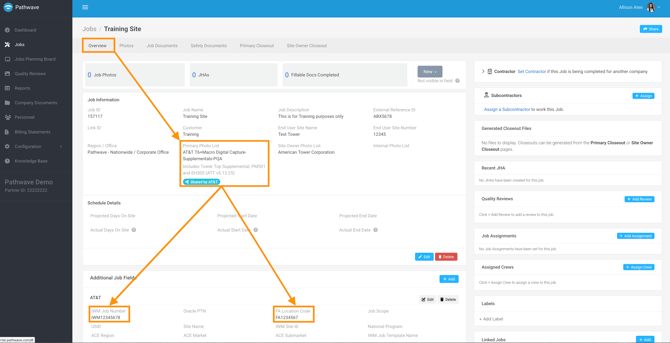
- A supported Primary Photo List is assigned
- Required additional job fields are populated
Once these items exist, the ESDT submission icon will display automatically.
Supported Primary Photo Lists
The following AT&T-managed photo lists can be used as the Primary Photo List for ESDT submission:
Drone Service Providers (AT&T-Managed)
-
- DSP Civil Captures - In-Building
- DSP Civil Captures - Macro PostCX
- DSP Civil Captures - Macro PreCX
- DSP Civil Captures - Small Cell HUB - Office
- DSP Civil Captures - Small Cell MACRO Hub
Suppliers (AT&T-Managed)
-
- AT&T T6+Macro Digital Capture-Supplementals-PQA
- AT&T PM501_SMC6 Small Cell_HUB
- AT&T PM501_SMC6 Small Cell_NODE
- AT&T: IB-DAS QCC Checklist
Pathwave automatically prepares the job for ESDT when one of these lists is selected as the Primary Photo List.
Note: If a supplier has a custom list additional configuration is required. Please reach out to the customer support team at support@pathwave.com.
Required Additional Job Fields
Pathwave requires specific fields on the job to correctly match photos to the appropriate ESDT Site and Project.
For AT&T-managed photo lists, the additional job fields must include:
Primary Photo Lists |
Additional Job Fields |
|
|
|
|
These values determine the ESDT Site ID and Project ID for Post-Construction workflows.
NOTE: The ESDT tab will not appear if:
-
A non-supported Primary Photo List is selected
-
The required job fields are missing (AT&T and/or ESDT)
-
The company and/or user does not have permission to submit (see ESDT Submission Permissions)
Related Articles
- ESDT Integration Overview
- How to Configure a Job to Surface the ESDT Icon
- How to Submit Photos to ESDT
- Troubleshooting: Why the ESDT Icon Is Not Showing