![100066_PathWave_Logo_Update_NoTag_REVERSE-1.png]](https://support.pathwave.com/hs-fs/hubfs/100066_PathWave_Logo_Update_NoTag_REVERSE-1.png?height=40&name=100066_PathWave_Logo_Update_NoTag_REVERSE-1.png)
Overview
Once a job includes the required job fields and a supported Primary Photo List, Pathwave displays the ESDT tab inside the Photos workspace.
From here, users can submit photos directly to ESDT.
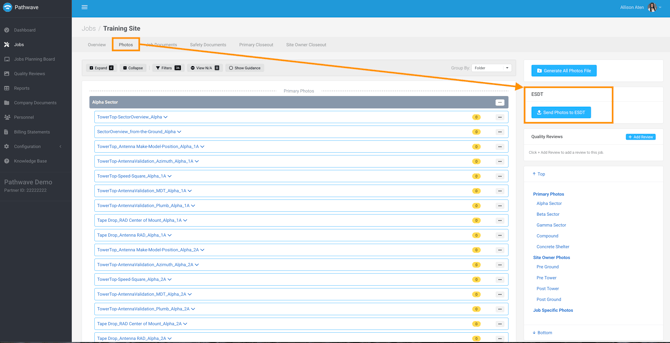
How to Submit Photos
- Open the job
- Navigate to Photos tab
- Select the ESDT icon
- Click Send Photos to ESDT
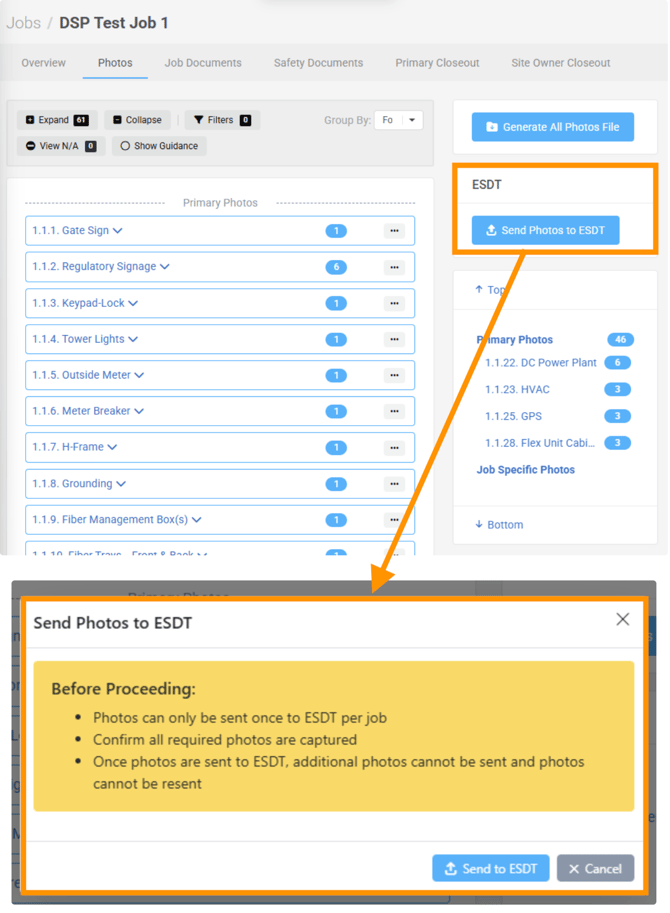 Pathwave begins processing the photos and submitting them into ESDT.
What Pathwave Verifies Automatically
Pathwave checks that:
- The ESDT Site exists (Additional Job Field = FA Location Code)
- The ESDT Project exists (Additional Job Field = AT&T IWM Job Number)
- Note: DSP Civil Captures - Macro PreCX uses the requirements (Additional Job Field = ESDT Project ID)
If either value is missing or incorrect, an error message will indicate what must be fixed.
Reference Article: How to Configure a Job to Surface the ESDT Icon
Submission Status
After clicking Send Photos to ESDT, Pathwave displays:
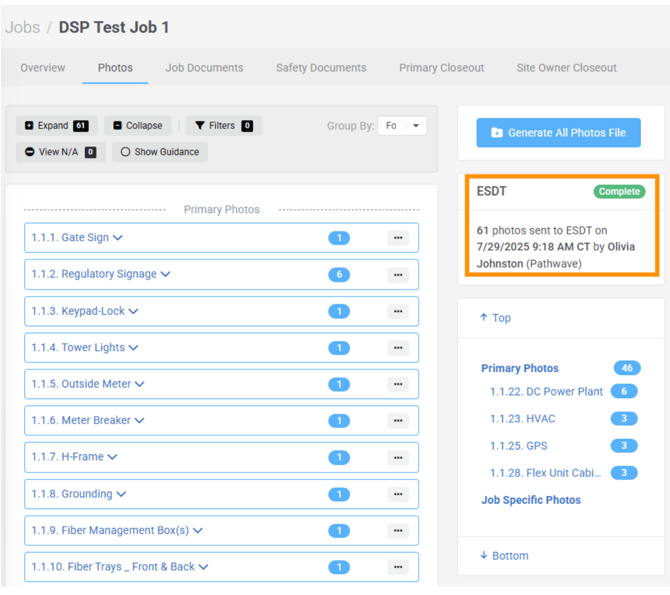
- Pending – submission started
- Sending – photos are being transferred
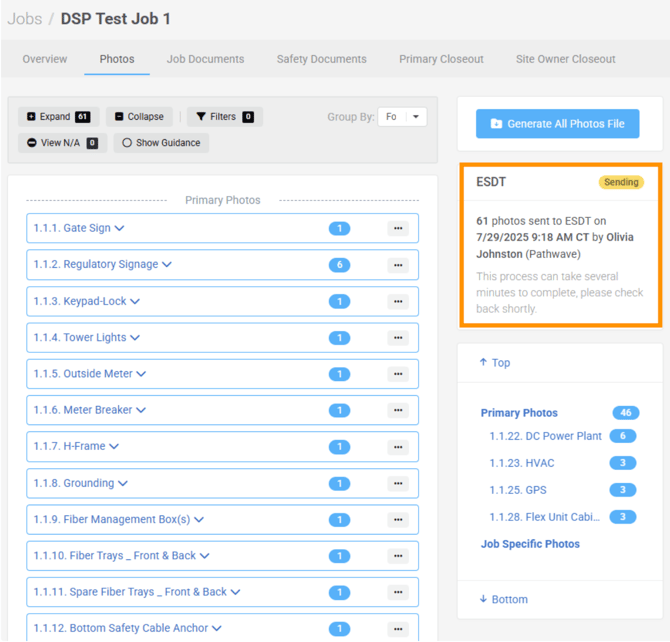
- Complete – all photos successfully delivered
Important Notes
- Processing may take a few minutes depending on the size of the photo set.
- Photos can be submitted to ESDT one time per job
- Any corrections needed after submission must be made directly inside ESDT
- Only users with the required permissions will see the submission option